Image Gallery
Upgrade to Phoenix Code Pro to access this feature.
The Image Gallery is a panel that appears at the bottom of the Live Preview. It lets you browse images from online image providers or select images from your device.
The Image Gallery is available only for
<img>elements.
By default, the Image Gallery appears when you select an <img> element. You can close it by clicking the Change Image button in the Control Box or the close button in the gallery. To reopen it, click the Change Image button again.

Browsing Images
Type a search term in the search box and press Enter or click the search icon. The gallery displays matching images from the image providers. Use the left and right arrows to browse through the results.
The gallery remembers your last search query and shows it when you reopen it. If there is no previous search, Phoenix Code shows results for a random query.
Hover over a thumbnail to preview the image in your page. The previously selected image is restored when you move the cursor away from the gallery.
To select an image, click the thumbnail. This embeds the image directly in your source code.
If the image provider doesn't support embedding, clicking the thumbnail will download the image instead.
To download the image to your project instead, click the Download image button. Phoenix Code downloads the image, saves it to the selected folder, and automatically updates the src attribute.
If this is your first time selecting an image, Phoenix Code prompts you to choose a folder where images should be saved. See Folder Selection Dialog for details.
Images are embedded or downloaded at the currently selected size. See Image Size Selection for details.
Below each thumbnail, the photographer's name and a link to their profile is displayed.
Selecting from Device
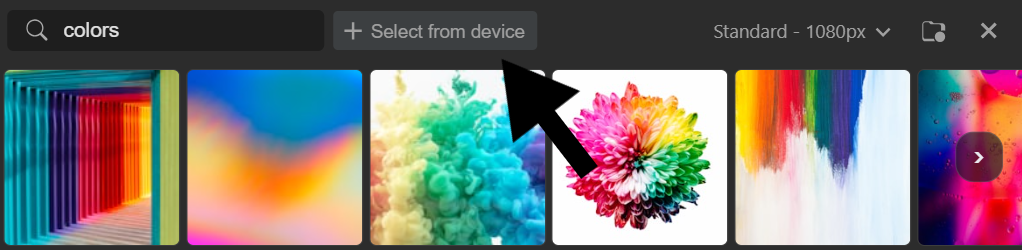
Click the Select from device button at the top of the gallery to choose an image from your local files.
If no folder has been selected yet, Phoenix Code prompts you to choose where the image should be saved.
Folder Selection Dialog
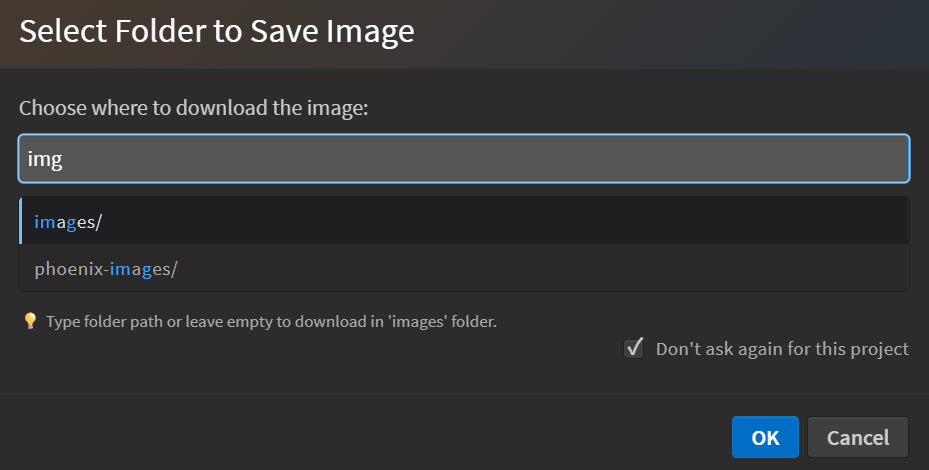
The first time you select an image, Phoenix Code prompts you to choose where images should be saved in your project.
The dialog includes:
- Folder path input: Enter a folder path relative to your project root. Phoenix Code suggests matching folders as you type.
- Remember this folder for this project: When checked (default), Phoenix Code reuses this folder for future image downloads in the same project.
If the folder does not exist, Phoenix Code creates it. If the folder path is left empty, images are saved to an
imagesfolder in the project root.
To change the saved folder later, click the Folder Selection button (folder icon) in the Image Gallery header.
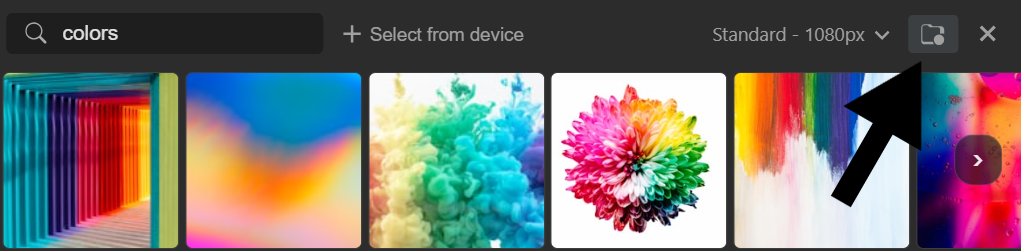
Image Size Selection
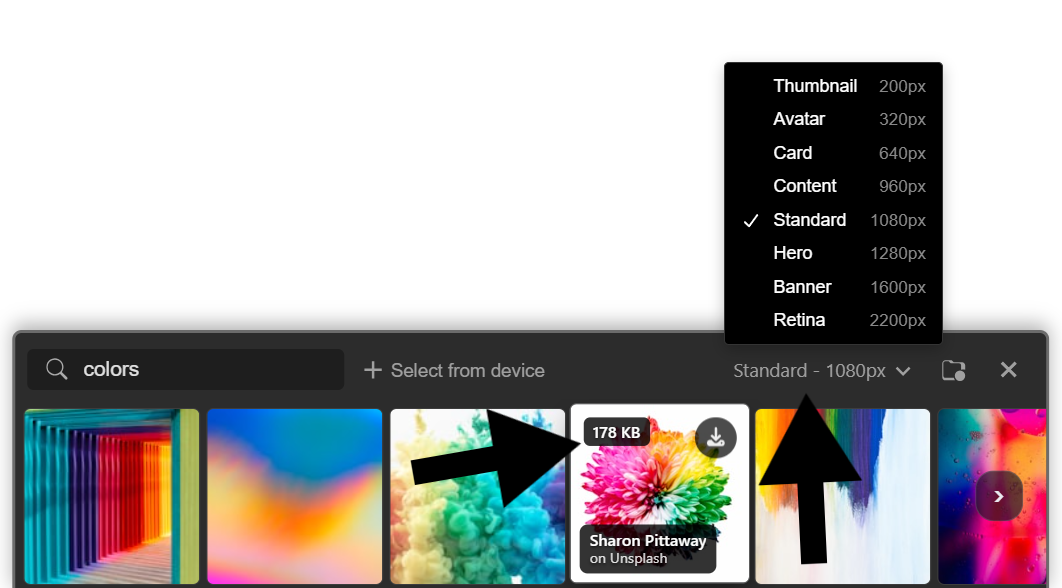
The Image Gallery includes a Size Selector that lets you choose the resolution of the image before embedding or downloading it.
Hovering over a thumbnail displays the estimated file size in the top-left corner.
Higher resolutions produce larger image files. Standard (1080px) is the default size.
Available Image size options
- Thumbnail (200px)
- Avatar (320px)
- Card (640px)
- Content (960px)
- Standard (1080px)
- Hero (1280px)
- Banner (1600px)
- Retina (2200px)